Save Places from YouTube Travel Vlogs
Directly to Google Maps
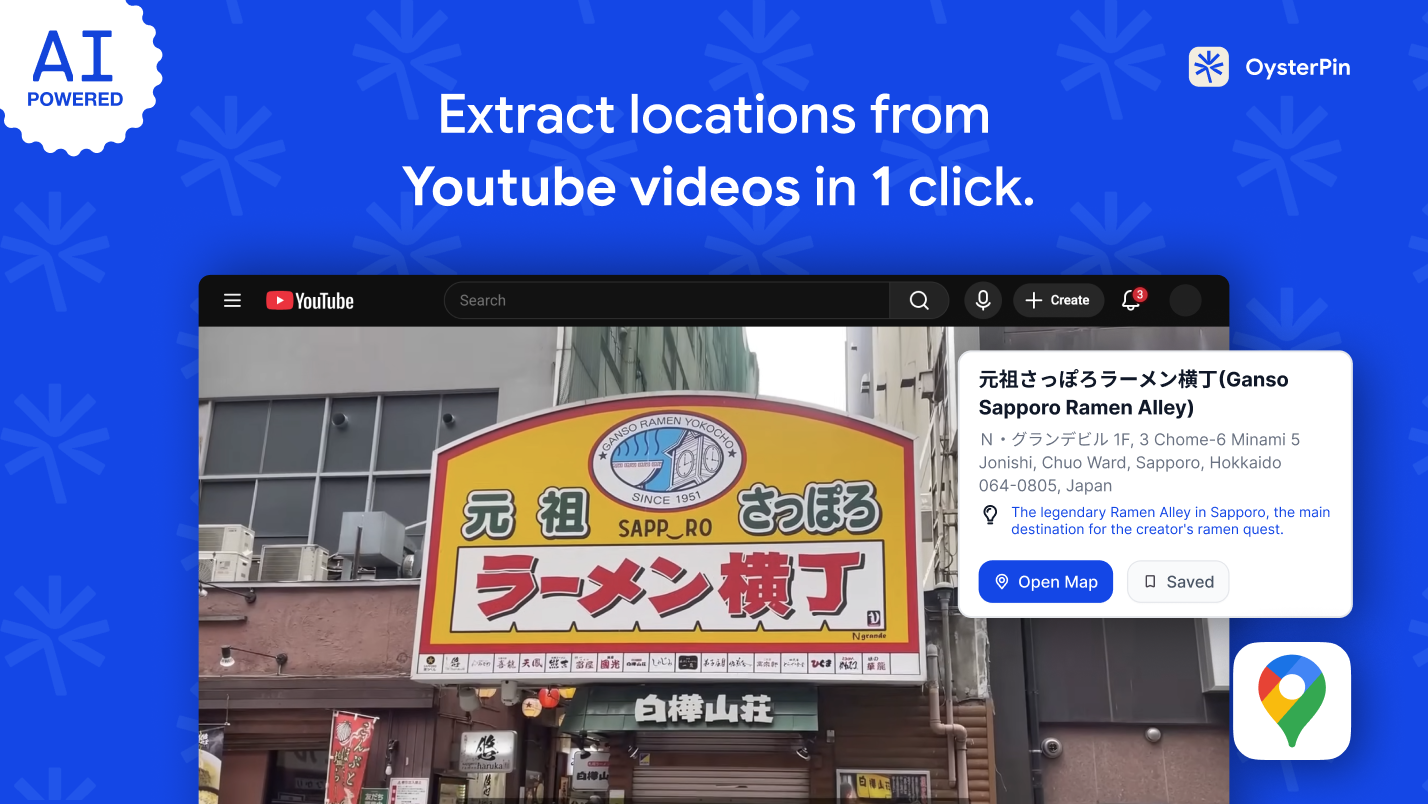
Extract restaurants and attractions from YouTube videos automatically with our AI Chrome extension. Skip manual searches, translate foreign signs, and build your itinerary in one click.
 Install Now — Free
Why Planning Trips from YouTube is Frustrating (Until Now)
If you use YouTube to find places to eat or visit, you've probably experienced these pain points.
Can't Find the Restaurant from the Vlog?
Watched an amazing food review but the location isn't linked? Stop wasting time scrolling through comments—let AI find it for you.
Can't Find the Place Name in English?
Struggling with foreign text in travel vlogs? Our AI extracts locations directly from the video screen and translates them into clickable map links instantly.
Drowning in YouTube Bookmarks?
Saving dozens of videos doesn't help your itinerary. Stop losing track of locations and batch-save them directly to your map.
How to Extract Locations from YouTube in 3 Steps
Three simple steps. That's all it takes to go from watching a video to having it on your map.
Land on a Video? Extract Right Away
Works on any travel vlog or food guide. Click OysterPin and extract places anytime during your watch.
Let AI Extract the Places
Click the OysterPin button below or beside the video, then choose: Quick Scan reads subtitles; AI Vision watches the video to catch places shown visually.
Sync to Google Maps
One click generates a Google Maps URL. Save them individually or batch export to your custom lists.
Quick Start
The Ultimate Trip Planning Chrome Extension
Packed with smart features designed to make your travel and place exploration effortless.
AI Vision Extracts Places On-Screen
Creators pointing at menus or signs? Our AI Vision watches the video to catch places shown visually, even if they aren't mentioned.
Personal Map Collection
All extracted places land on your interactive map. Filter, organize, and plan trips. Your personal atlas from every video you watch.
Zero Language Barrier
Perfect for international travel. Extract and locate places with foreign scripts like Kanji, Hangul, or Thai without typing a single character.
One-Click & Batch Save to Google Maps
Build your itinerary faster. Save places directly to Google Maps, or unlock Batch Save to export an entire video's locations to custom lists or CSV.
Ready to Build Your Itinerary?
Start extracting places from YouTube and saving them to Google Maps today.
FAQs about Our YouTube Location Extractor
Everything you need to know about OysterPin.
How do I save places from a YouTube video to Google Maps?
Simply install the OysterPin Chrome extension, open any YouTube travel video, and click the extension. The AI will automatically generate clickable Google Maps links for every place mentioned or shown.
Which platforms are supported?
OysterPin currently provides full support for YouTube. We're actively developing support for Instagram Reels and TikTok — stay tuned for updates!
Do I need to create an account?
Nope! Just sign in with your existing Google account — one click, no forms, no passwords to remember. You'll be up and running in seconds.
Will it slow down my browser?
Not at all. OysterPin is ultra-lightweight and only activates when you click the extension button. It has zero impact on your browsing performance when idle.
How accurate is the AI extraction?
Our AI analyzes video content, descriptions, and comments to identify places. Accuracy is typically above 90% for well-known restaurants and locations. You can always edit or correct extracted information.
Does it work for foreign language videos (like Japanese or Korean)?
Yes! OysterPin's AI recognizes and translates foreign scripts directly from the video screen. You don't need a foreign keyboard to find that hidden sushi bar or K-BBQ spot.
Can I export my saved places?
Yes! Paid users (after purchasing any Credit Pack) can use Batch Save and export to Google Maps, custom lists, or CSV. Perfect for trip planning or sharing with friends.
Still have questions? Share your feedback with us